Set up shared translation memory across all your Tolgee projects
·
...

Daniel Krizan
Head of Engineering

If you ship more than one product, or even just one product with marketing pages and an app side by side, you've probably noticed the same thing: the same sentence keeps getting translated from scratch, and each time it comes out a little different. "Get started" becomes „Erste Schritte“ in the app, „Los geht’s“ on mobile and „Jetzt loslegen“ on the marketing site. Three correct answers and one inconsistent product. The error message you wrote in product A gets retranslated for product B by a different person, slightly differently. The marketing site's "Welcome back, {name}" doesn't match the app's.
It's not anyone's fault. It's a workflow problem: each project translates in isolation, so every project re-litigates wording decisions that have already been made elsewhere.
In this guide I'll show you how to fix that with Tolgee's shared translation memories. We'll create one at the organization level, seed it with what you've already translated, assign it to multiple projects with the right read/write access, and use the penalty system to gracefully handle "this memory is good but not bulletproof" cases. By the end you'll have a single source of approved translations that every project can draw from and contribute back to.
Why one memory per project isn't enough
Tolgee has always given every project its own project-only translation memory. As soon as you save a translation, that pair (source text → target text) becomes a candidate match for any future translation in the same project with similar source text. That's already useful: it stops translators from re-translating the exact same string five times within one project.
But every project's memory is an island. Product A's "Get started" never reaches Product B. The marketing site's polished UX writing never feeds the in-app strings. So you keep paying the cost of inconsistency at the cross-project boundary.
A shared translation memory lives one level up, at the organization. Multiple projects can read suggestions from it. Some of them can also write to it, automatically, every time someone saves a translation. So a phrase translated once becomes the canonical version everywhere that memory is assigned. No more "Get started" lottery.

You don't have to choose one or the other. Every project keeps its own project-only memory; on top of that, you can assign as many shared memories as you want. The editor merges matches from all of them when it shows suggestions.
Plan note: Project-only memories are available on every plan, including self-hosted. Shared translation memory management is a paid feature. If you're on a free or self-hosted plan and the "Translation memories" page nudges you to upgrade, that's only about shared memories: your project-only memories keep working as before.
Creating a shared translation memory
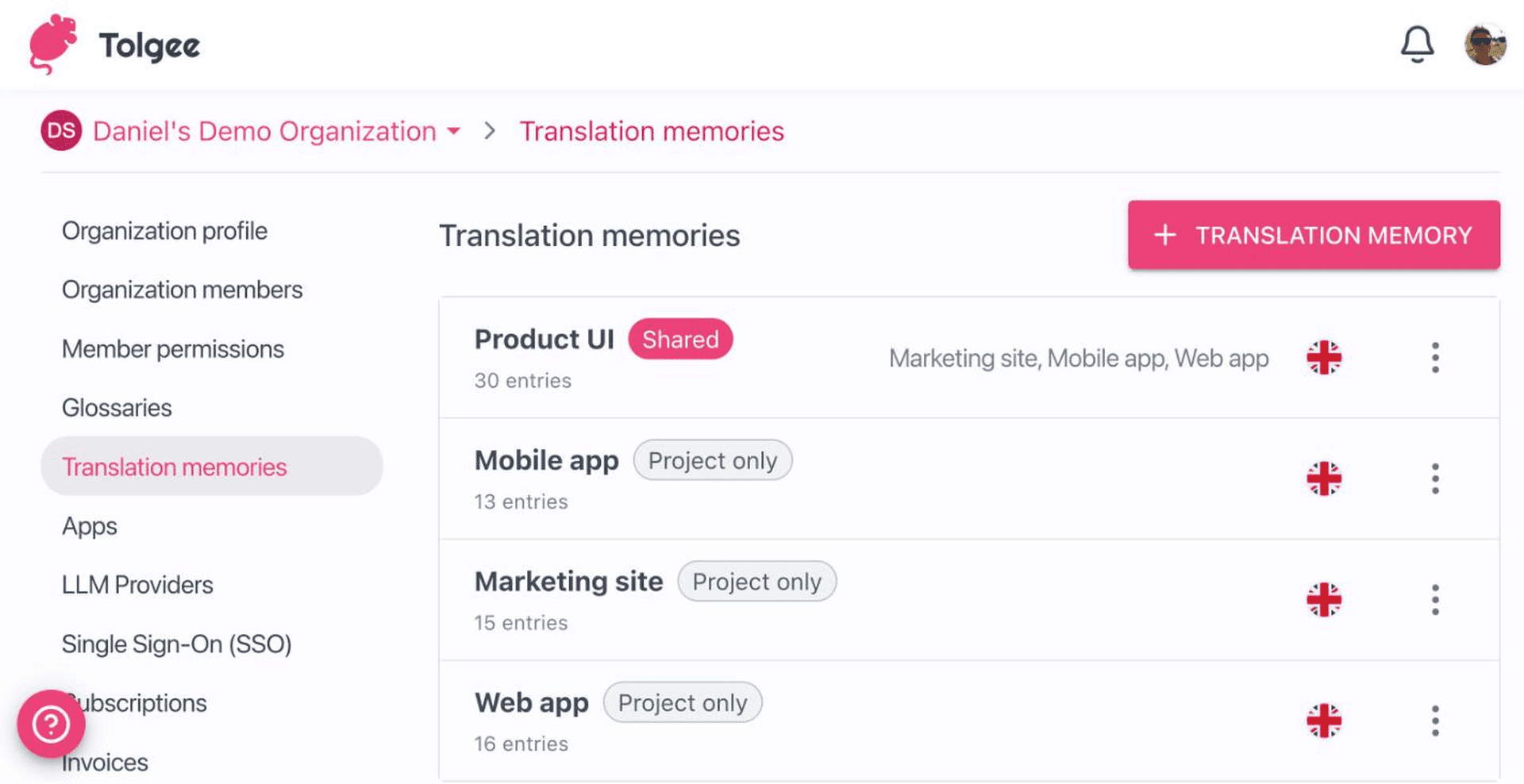
The shared-memory layer lives in Organization Settings. Open your organization, go to Settings → Translation memories, and click + Translation memory.

Most of the fields explain themselves. Two are worth pausing on:
Base language. Every project assigned to this memory has to use the same base language. (Spoiler: this is why we'll have separate memories for different base-language project families. More on that in a minute.)
Default penalty (0–100%). Leave this at 0 for now. We'll come back to it.
Hit Create and your shared memory exists. It's empty, that's expected. Time to fill it.
Filling the memory
Most of you aren't starting from zero. You already have years of translations in projects, in spreadsheets, or in an export from another TMS. A brand-new memory is empty, and Tolgee meets you with three ways to fix that.

Sync from projects is the one to reach for first, because it needs nothing you don't already have. Give a project write access to the memory and Tolgee feeds that project's translations into it automatically: everything already translated, and everything translated from then on. No export, no file. Wiring that up is the next section.
Import from file is for translations that live outside Tolgee. Tolgee reads and writes the standard TMX 1.4b format, which is what most translation tools speak, so an export from your previous tool usually just works. Pick the file, hit Import, and the entries land in the memory.

One thing to watch out for: the memory's base language is authoritative. If your TMX file declares srclang="en" but you set the memory's base language to cs, Tolgee will use cs as the source and silently drop <tu> elements that don't have a Czech <tuv> inside them. This is intentional: importing a publicly distributed en→cs TMX into a Czech-base memory should land Czech-source entries, not English-source ones.
Add manually is exactly what it sounds like: type a source segment and its translation. Good for terminology you want in the memory before anyone has translated it anywhere.
Assigning projects: who reads, who writes
A memory only does its job when projects are connected to it. Open the memory's settings (the gear icon, or open the memory and go to its settings dialog). The Shared with section is where the assignments live.
Click + Add project, pick the project you want, and you get three columns for it:
Read. When on, this project's editor surfaces matches from this memory as suggestions. Auto-translate on exact matches can also use it. This is the column you toggle for projects that should benefit from the memory.
Write. When on, translations saved in this project flow automatically into the memory. New entries appear as soon as translators hit save. This is the column for projects that contribute to the memory.
Penalty. Per-project override of the default penalty. Empty means "use the memory's default". (We'll get to penalty in the next section.)

The Read/Write split is more useful than it sounds. Common patterns:
One contributor, many readers. Your most polished product is the "source of truth": it writes to the memory, and every other product reads from it. New brand wording is set once and propagates everywhere automatically.
Mutual sharing. A handful of related products all both read and write. Whoever translates a string first sets the wording for the others.
Read-only for marketing. Marketing copy lives in its own memory with carefully curated entries; products read from it for brand-critical strings but don't write back (you don't want a translator in the app accidentally setting marketing's wording).

One restriction: a project can only be assigned to memories whose base language matches the project's base language. So if you have projects on en and cs, you'll need separate memories per base language. The assignment picker hides projects with mismatching base languages, so you can't even accidentally try.
Penalty: when "less trusted" matters
This is the part that doesn't exist in most TM systems and is genuinely useful, so it's worth a section of its own.
A penalty is a number between 0 and 100% that gets subtracted from the similarity score of every suggestion from a memory before it's ranked in the editor. So a memory with a 20% penalty needs roughly 20% more raw similarity to beat a memory with no penalty on the same source text.

Why do this instead of just trusting all your memories equally?
Imagine you've imported a TMX from a third-party translator who delivered work three years ago, before your current style guide existed. You want translators to see those matches as a starting point ("here's how this kind of thing was phrased before"), but you don't want them ranked above suggestions from your current, brand-aligned memory. Give the old import a 30% penalty and the problem solves itself: it shows up when it's the best you've got, but the moment your current memory has anything reasonable, that wins.
Penalty has one more side effect that's important: any non-zero penalty disables auto-translate from that memory. Suggestions still appear in the editor (with the lower score), but Tolgee won't silently use them to fill empty cells. The reasoning: a penalty is the user saying "I trust this memory enough to surface it, but not enough to let it write on its own." Auto-translate respects that.
Bonus: only accept reviewed translations
One more switch worth knowing about. In the memory's settings there's an Only accept reviewed translations toggle.
When it's off (the default), every translation saved in a write-access project flows into the memory, including drafts in progress. The memory fills up faster but it mixes wording-in-flight with wording-you'd-stand-behind.
When it's on, only translations marked Reviewed are written. And, this is the subtle bit, if a previously reviewed translation later gets un-reviewed, its entry is removed from the memory. The memory stays a clean reflection of what your team has actually approved.
(Manual entries you add by hand and entries imported from a TMX file aren't affected by this toggle, they always go in, because they're not coming from a project's translation workflow.)
For high-stakes memories, anything customer-facing, anything compliance-sensitive, turn this on. For internal-tool memories where speed of build-up matters more than tightness, leave it off.
What the translator actually sees
Open one of the assigned projects and start translating. You'll see matches from the shared memory in the editor's suggestion panel, ranked alongside matches from the project's own memory. When the source text is an exact match and the memory has no penalty, auto-translate will fill in the cell for you. The next translator on the next project will see the same match. The drift problem you started with is no longer a problem you have to think about.

Docs and next steps
Manage Translation Memories: create, browse, fill, share, edit, delete, permissions, TMX format.
Translation Memory (use): how matches are surfaced and scored in the editor, the auto-translate rules, and the suggestion-panel UI.
If you're self-hosted and need a license for shared memory management, reach out at info@tolgee.io and we'll get back to you with options.